Phase 1: The platform and the cell
Before you configure anything, this phase gives you a mental model of the cell you are about to build and the platform it runs on. Everything after this leans on the ideas introduced here.
What you’ll build
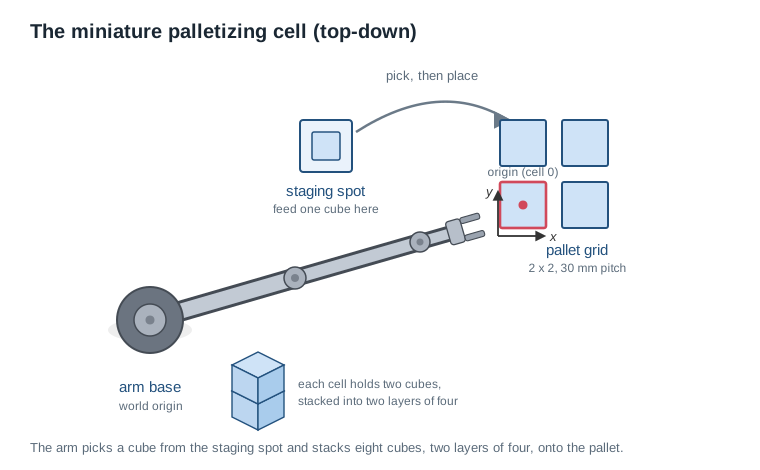
You are building a miniature palletizing cell. An SO-ARM101 arm picks cubes, one at a time, from a staging spot and stacks them on a small pallet: two layers of four, eight cubes total. The arm and its gripper are the hardware; a set of hand-taught poses and, later, your own Python code, are what turn that hardware into a working pack routine.
The three layers
A Viam machine is made of three layers that each do one job:
Viam cloud app
  └─ machine configuration  (the source of truth)
           │
           │  viam-server pulls config
           ▼
Your personal computer
  └─ viam-server   drives the arm and gripper, exposes the control API
           ▲
           │  control API calls
           │
Your Python script
- The Viam cloud app is the source of truth for configuration. When you add a component, change an attribute, or configure a service, you are editing a JSON document stored in the cloud. The app never controls your robot directly; it describes what should run.
- viam-server runs on your computer. It pulls the configuration from the cloud app, starts every component and service that configuration describes, and exposes them over a control API. This is the layer that talks to the arm: the SO-ARM101 connects to your computer over a USB serial cable, and
viam-serverdrives the arm’s motors through that connection. - Your Python script connects to
viam-serverand calls that control API to move the arm and read its position. You write it later in the workshop.
Open your machine’s page in the Viam app now and find the status indicator that shows the machine is live. That indicator confirms viam-server is running on your computer and connected to the cloud app.
How your code connects
When a Python script imports the Viam SDK and connects to your machine, the connection goes to viam-server, not to the cloud app. The cloud app helps your script locate the machine and authenticate, but once the connection is established, every control API call, moving the arm and reading its position, goes directly to viam-server. You will write exactly this kind of script later in the workshop.
Open the CONNECT tab on your machine’s page and look at the code sample it generates. It contains your machine’s address and an API key and ID pair, the things any script needs to authenticate and reach viam-server.
Components and services
Everything a Viam machine does is modeled as a resource, and resources split into components and services.
- The arm and the gripper are components: each one wraps a piece of physical hardware and exposes a standard API for it. An arm moves to a pose; a gripper opens and closes.
- The motion service is a service: software that plans how the arm should move, rather than hardware you can point at. It is a builtin service, so it ships with
viam-serverand needs no configuration; you just call its API. The arm and gripper components, by contrast, come from a module thatviam-serverdownloads when you configure them in Phase 2.
Three robotics concepts to learn
Three concepts carry the whole workshop. This section only previews them; you will work with each one directly in a later phase.
The frame system answers “where is everything around the robot, and how is it related?” It tracks the position of every component and object in the cell, and the parent-child relationships between them, all traced back to the world origin. You teach the two key positions to the arm by hand in Phase 3. See Frame system for the full picture.
Motion planning answers “how does the arm get there?” Given a target pose, the motion service works out a path of joint movements that reaches it without colliding with anything.
WorldState answers “what is in the world around the robot?” On each move, it tells the motion service what to account for: obstacles, the things to avoid, and transforms, the things that move with the arm, like the gripper and any cube it is holding. In this workshop, WorldState grows as you pack: each cube already on the pallet is an obstacle to route around, and the cube in the gripper rides along as a transform. See Obstacles and WorldState for more.
Checkpoint
viam-server is running and reachable before you configure anything. You should also be able to say, in your own words, what the frame system, the motion service, and WorldState each do, since every later phase builds on them. If the machine is not Live, start viam-server on your computer before continuing.With the mental model in place, Phase 2 is where you add the arm and gripper, verify them, and place them in the frame system.
Was this page helpful?
Glad to hear it! If you have any other feedback please let us know:
We're sorry about that. To help us improve, please tell us what we can do better:
Thank you!